Less busywork in Google Workspace: four updates for Drive and Sheets
Organizing files and cleaning up spreadsheets take time away from the work those tools are supposed to support. Four Google Workspace updates announced between April and June 2026 tackle that overhead: filing loose documents, turning messy text into a table, getting past a broken formula, and spotting unusual patterns in business data.
They fit together because they address different parts of the same job: getting information into a shape your team can use. Here’s where each one helps, and what you’ll need to use it.
Give loose files a home in Drive
Gemini’s Organize My Files feature suggests destinations for loose files based on your existing organization. It can recommend existing folders or propose new ones for related documents.
In Drive on the web, open My Drive or a folder and look for Suggest file moves. The button appears when there are files it can help organize. You can review the suggestions, deselect individual files, change destinations, and rename proposed folders before approving a batch move.
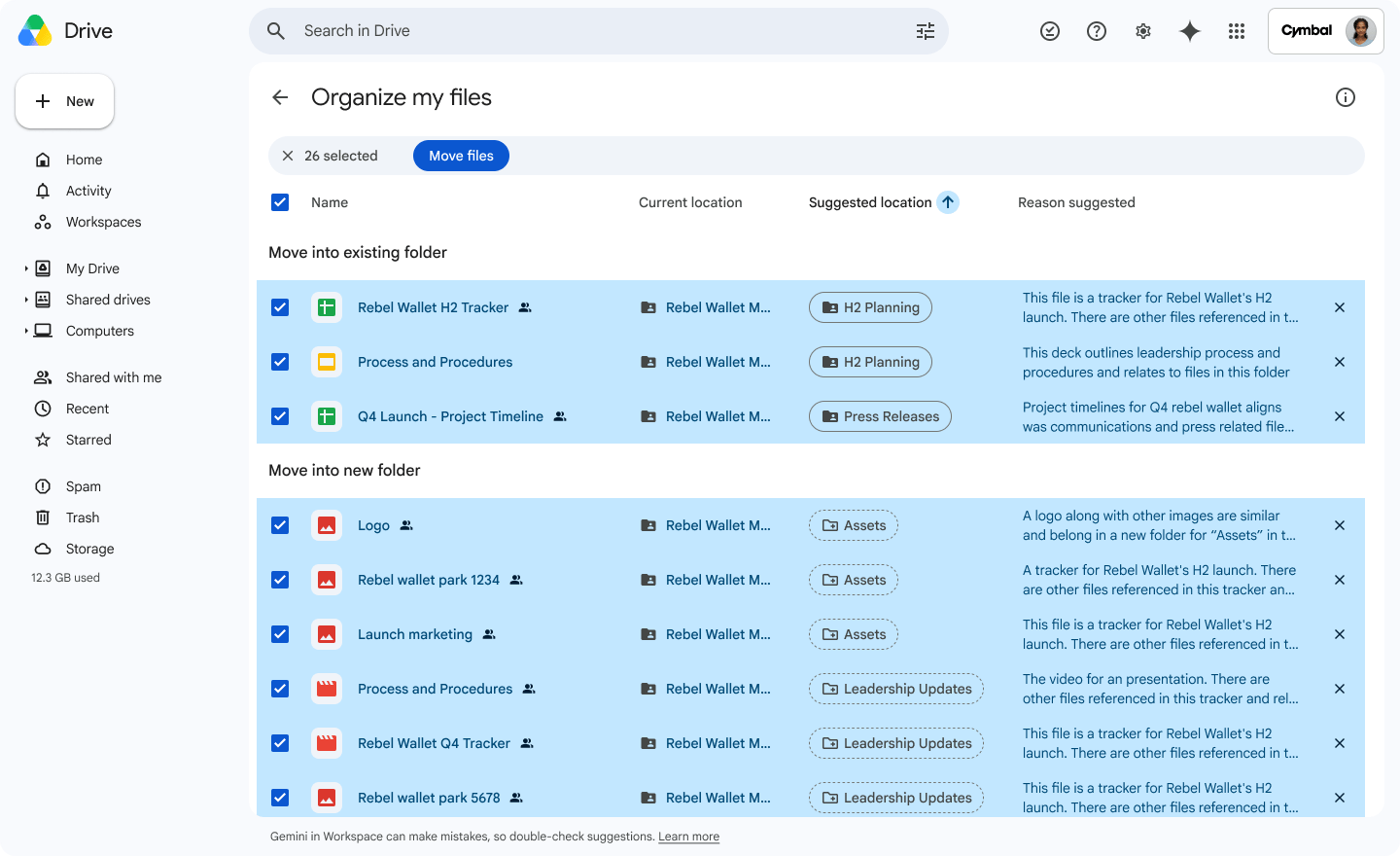
That’s useful for a backlog of project documents that never made it into the right folders. A clear folder structure gives the suggestions a better starting point, so agree on where work belongs before tackling the backlog.
Review any permission changes when confirming moves, especially for documents shared with clients or outside collaborators. The feature is currently available in English on Drive web. Google’s announcement and instructions cover the details.
Turn pasted text into a working table
Sheets can now offer Convert to table when you paste suitable unstructured text, including bulleted lists, freeform text, or JSON. Gemini organizes the content into a table, saving some of the manual work of separating information into rows and columns. The prompt appears when Sheets recognizes content it can convert.
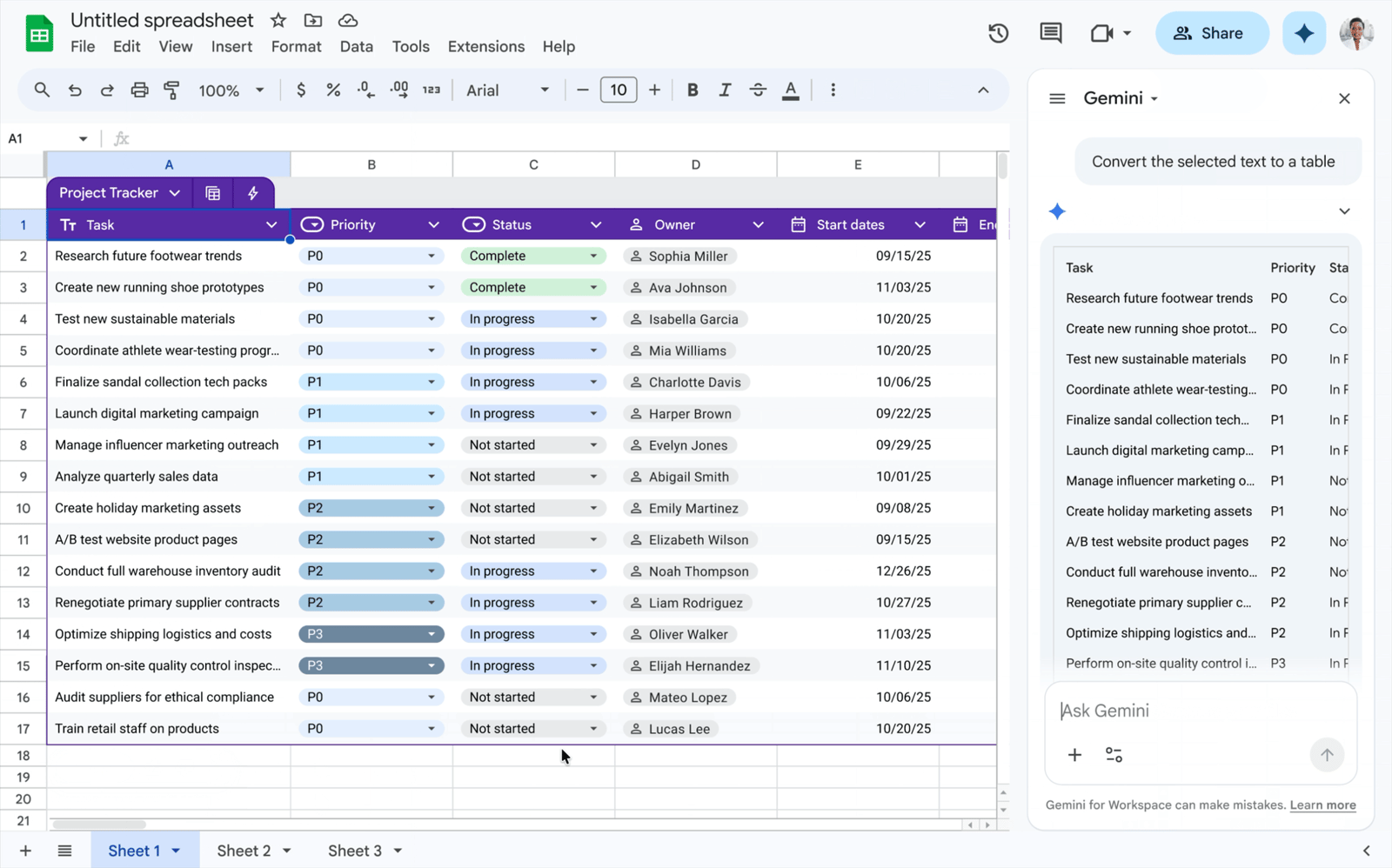
A project task list from an email is a good place to try this. After conversion, compare it with the original: check that owners, dates, and amounts landed in the right columns, and that missing information stayed missing. Then start sorting, filtering, or assigning work.
Google’s announcement explains this new entry point to Gemini’s table creation tools.
Get an explanation when a formula breaks
Gemini in Sheets can diagnose a formula error using the surrounding data structure, explain the problem, and provide a corrected formula. That gives you a way to get help inside the spreadsheet while the context is still in front of you.
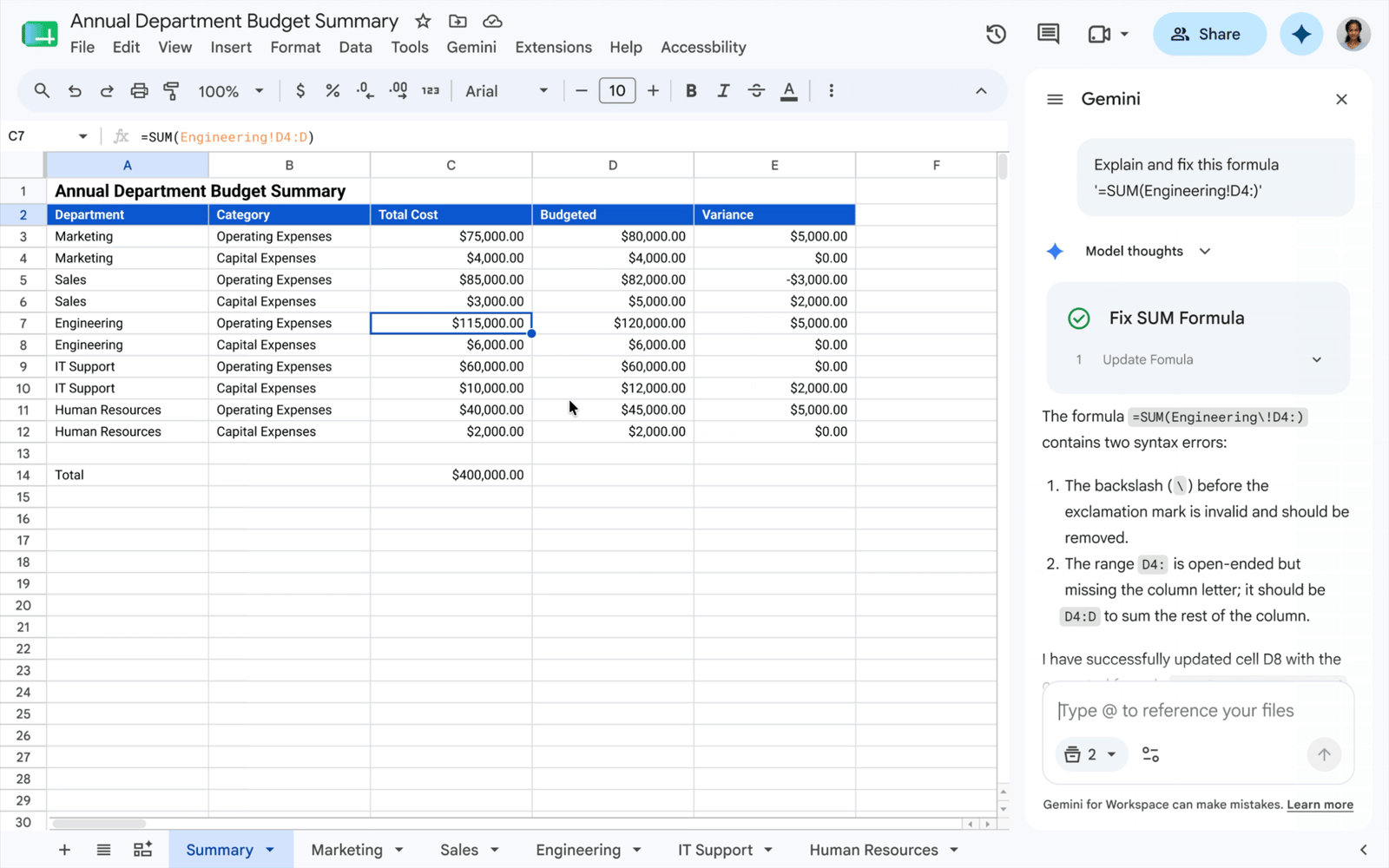
For a shared budget or recurring report, the explanation can be as useful as the correction. It helps the next person understand what went wrong rather than inheriting another mysterious formula.
Before relying on the result, check the referenced cells and compare a few calculations with values you already know. A formula that runs successfully still needs to answer the question your report is asking.
See Google’s formula troubleshooting announcement for feature details.
Spot unusual trends in Connected Sheets
The fourth update is for teams whose data is already in BigQuery, Google’s cloud data warehouse. Connected Sheets lets them work with that data from a spreadsheet. Its new anomaly detection feature flags unusual values in data measured over time, such as daily order totals or weekly service requests.
It uses BigQuery ML and Google’s TimesFM model, with a configuration panel that doesn’t require writing SQL or training your own model. You can choose the period and detection threshold, filter the input, and schedule refreshes. Results include an anomaly flag and lower and upper bounds for the expected range. Google’s announcement describes the options.
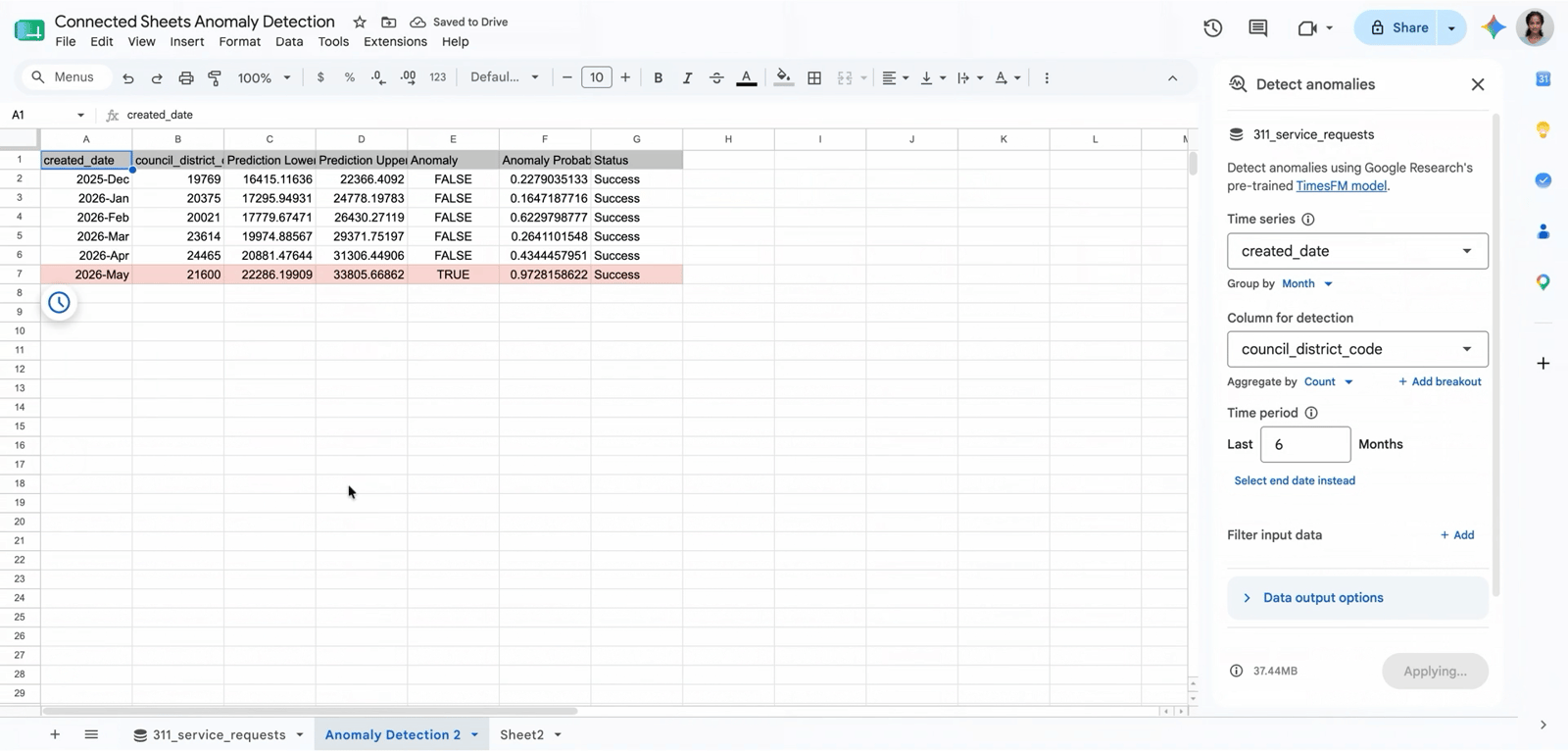
For example, an unexpected drop in orders could prompt someone to check for a missing import, a tracking issue, or a real change in demand. The flag gives you a place to investigate; the business context determines what it means.
This requires access to a BigQuery project with billing enabled. It applies to Connected Sheets using BigQuery data, rather than any ordinary spreadsheet. Google’s setup instructions walk through Advanced analytics → Detect anomalies and note that additional Google Cloud permissions may be needed.
Check access before planning around a feature
For business teams, Google lists Business Standard and Plus and Enterprise Standard and Plus as eligible for the three Gemini features above. Workspace smart features must be enabled; Drive organization and formula troubleshooting also depend on Gemini access being enabled for the relevant service.
Connected Sheets anomaly detection has broader account availability, including personal Google accounts, but still requires the BigQuery access and billing setup described above.
The Drive and formula announcements included temporary higher usage limits through July 15, 2026. That period has ended, so check the current limits for your account before building a recurring process around either feature.
Start with the work your team repeats
Pick one recurring task: a folder that needs cleanup, a list someone reformats every week, or a report with formulas that regularly need attention. Try the relevant feature on a small example, review the output, and decide whether it saves enough time to become part of the routine.
If your team already uses BigQuery for reporting, anomaly detection is worth a closer look. For everyone else, the Drive and everyday Sheets improvements are the easier place to start.
Want help figuring out which of these fits your team? As a Google Workspace partner, 2Fifteen Tech can help review your setup, confirm access, and walk you through the changes we make together.