Apple's Managed Migration Assistant: the Mac refresh cycle just got a lot less painful for managed environments
Apple's new Managed Migration Assistant brings declarative IT control to Mac-to-Mac data migrations in macOS 26.4 Tahoe. Here's what it changes for managed environments, and why it matters for your next refresh.
Migration Assistant has been around for as long as anyone can remember. For consumers, it is the magic that makes a new Mac feel like your old Mac after lunch. For managed environments, it has been a recurring headache: an unscoped, unmanaged process that pulls over the entire old user record, dragging legacy account state into a brand new device. IT had two bad options: skip migration entirely and ask users to rebuild their world by hand, or let Migration Assistant do whatever it does and clean up the mess afterward.
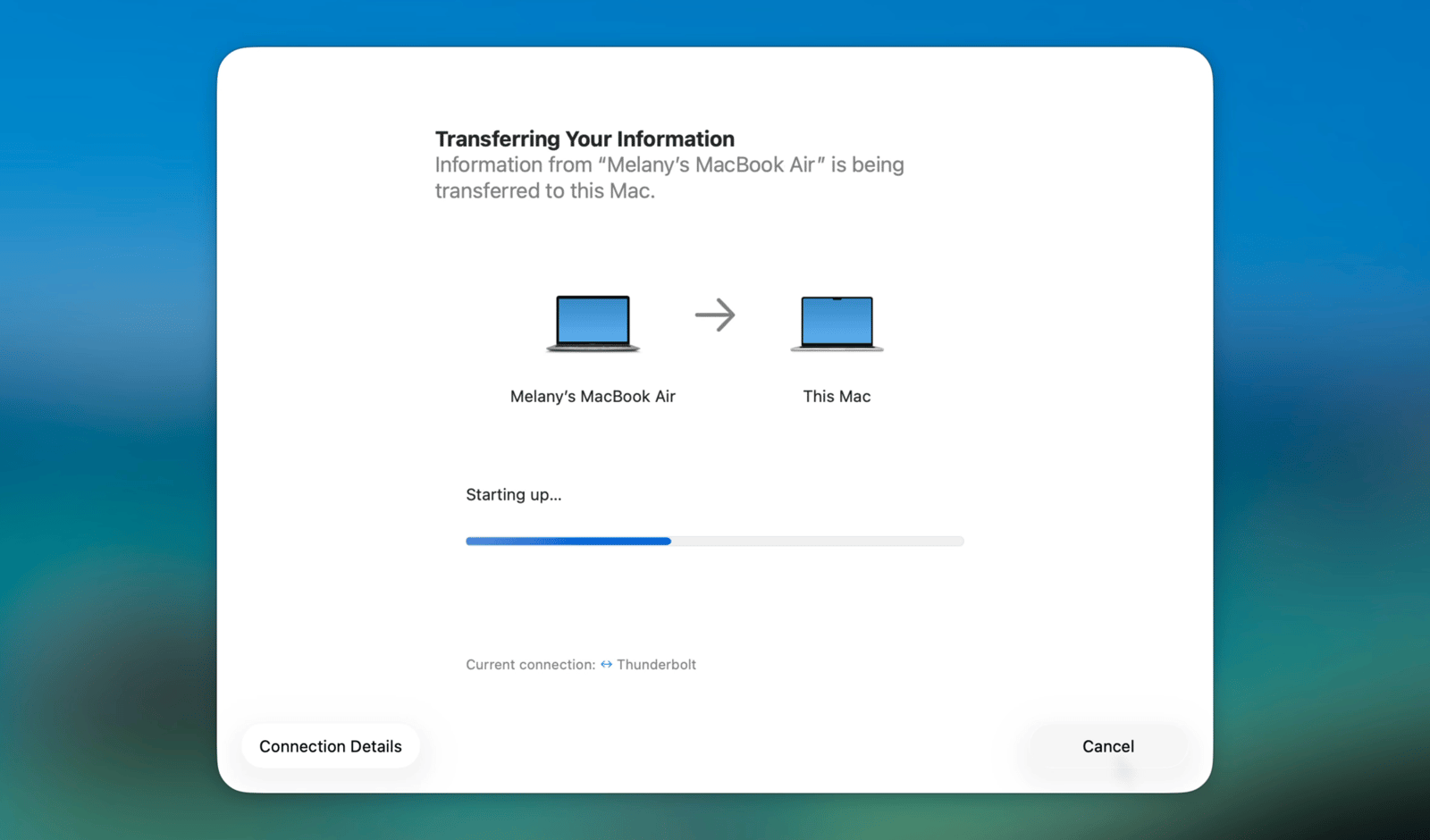
In macOS 26.4 Tahoe, Apple finally addressed it. Managed Migration Assistant (MMA) is a new declarative capability that gives IT real control over what moves between Macs, while still preserving the familiar one-tap-and-go experience users expect.
Our MDM partner Iru published a thorough breakdown of how the configuration works in practice. Combined with Apple’s official deployment guide, here is what changes, and why it matters if you run, or rely on, a managed Mac fleet.
The problem MMA actually solves
When you set up a brand new Mac through Automated Device Enrollment, you usually have a strong opinion about identity. Maybe the local account is created through your IDP via Platform SSO. Maybe MDM pre-fills it from a known-good directory record. Either way, you want the account on day one to look exactly the way your management posture says it should.
Old Migration Assistant cared about none of that. It would happily bring the entire user account record from the previous Mac (the local password, the home folder, the privileges, the cruft) and overwrite the work your enrollment flow had just done. In managed environments, that usually meant skipping migration outright and accepting that users would lose their settings, their library data, their customizations, and a good chunk of their first-week productivity.
MMA’s core architectural change is one sentence: it separates identity from data. Your enrollment flow creates the user account. MMA migrates the data into it. That single decoupling is what unlocks everything else.
What you get on day one
MMA is built directly into Setup Assistant. There is nothing to install on the new Mac, no agent to push, no separate tool to launch. As long as the target Mac is running macOS 26.4 or later, is supervised through Automated Device Enrollment, and your MDM delivers the right declaration before the device finishes configuring, MMA replaces the consumer migration flow with a managed one.
From the user’s perspective, the experience still feels like the Migration Assistant they have always known: discover the old Mac, confirm a pin, pick a user, watch the progress bar. The difference is what they can and cannot choose:
- Only the user's home folder and library transfer. System-level applications stay behind
- Accounts you have flagged as off-limits never appear as migration options
- The source user is pre-selected using attribute matching, so end users do not pick the wrong one
- Required paths transfer no matter what; excluded paths never do
- Detailed status (start time, end time, file counts, transfer size, any errors) flows back to your device management service via DDM
Choosing which items migrate during Setup Assistant under Managed Migration Assistant.
That last point is bigger than it sounds. Pre-MMA, Migration Assistant was opaque. IT had no idea whether a migration happened, succeeded, partially failed, or left specific files behind. With Managed Migration Assistant, the declarative status channel provides a real completion report. For the first time, you can actually audit a refresh cycle.
What IT gets to control
The MMA declaration exposes four levers, described in detail in Apple’s deployment guide and Iru’s writeup:
- Required paths: folders that must come over, no matter what. Paths are relative to the home folder. Folder paths need a trailing forward slash (e.g.,
Documents/Work/). - Excluded paths: folders or files that must never migrate, even if they live inside a required parent directory.
- Excluded accounts: source-Mac users that should never appear as a migration option. This is where local IT admin accounts and stale ex-employee profiles get hidden so end users cannot accidentally pull them forward.
- Privacy and security settings: whether system-level privacy decisions migrate alongside the user data.
One important caveat: ~/Library always migrates. You can exclude specific items inside it, but the folder itself is not optional. That is actually the right default. Most of what makes a Mac feel like your Mac lives in ~/Library, and the inability to bring it over cleanly was one of the main reasons traditional migration in managed environments felt useless.
The gotcha worth flagging
Iru called this one out and it is worth repeating: if your ADE configuration skips every Setup Assistant pane, MMA never runs. The Restore pane is what MMA attaches to. If you have inherited an enrollment profile that aggressively skips panes to streamline onboarding, your beautifully crafted declaration will silently apply to a screen the user never sees.
If you are rolling MMA out to an existing fleet, audit the skip keys on your ADE profile first. Un-skip Restore. Then deploy the declaration.
Where MMA changes the math for your business
The technical mechanics are interesting on their own. The business implications are where this gets meaningful.
Hardware refreshes that do not take a week. If you have delayed an Intel-to-Apple-silicon refresh because the migration work felt untenable across 50 or 200 users, MMA changes the cost equation. A direct Thunderbolt connection moves data at gigabit-class speeds, the migration can be scoped to skip what your cloud already covers, and the whole process happens at the user’s desk without IT having to babysit every device.
Infrastructure changes you have been putting off. Switching MDM vendors, adopting Platform SSO, moving away from legacy directory binding, standardizing on a new username convention: any of these usually means “everyone’s data has to come along, but their account is changing.” That is exactly the scenario MMA was designed for.
Mergers and acquisitions. When the new parent company says “everyone needs to be on our MDM, our identity provider, and our security baseline by Q3,” MMA is the cleanest path to get there without wiping out the work people had on their machines.
Rapid return to service. A failed SSD, a stolen laptop, a Mac that needs to ship to a new hire today: restoring from a cloud backup can take hours or days depending on the dataset and the pipe. A direct local connection consistently outperforms cloud restores, especially when you scope the migration to “what does this user need to be productive in the next hour” rather than “everything they have ever touched.”
User library continuity. This is the one that is easy to overlook. Cloud storage providers protect a subset of the home folder, usually Documents and Desktop. They do not protect ~/Library, which is where preferences, application support data, signing identities, custom keyboard layouts, and dozens of other invisible things live. MMA does. For users who feel disoriented every time they get a new machine, that single difference is what turns a new Mac into their Mac.
What MMA is not (yet)
MMA is a first-version capability, and it is worth being clear about the edges:
- Apps do not come over. MMA intentionally ignores the system
/Applicationsfolder. The expectation is that your MDM is the source of truth for installed software, which, honestly, it should be anyway. Apps the user installed inside their home folder will migrate. - Time Machine is not a supported source. Today MMA is a Mac-to-Mac direct migration. If your environment relies on Time Machine for backup, that workflow stays on consumer Migration Assistant.
- The source Mac still needs an admin to start migration. Apple did not change the source-side authorization for MMA. Initiating the transfer still requires admin rights on the old Mac.
- It is a one-shot during Setup Assistant. MMA runs as part of the out-of-box experience. Once the user is past Setup Assistant, you are back to consumer Migration Assistant.
If any of those constraints are a real blocker in your environment, Apple’s Feedback Assistant is the right channel to make that case.
How this looks in Iru
Iru is the MDM we run for our customers, and their walkthrough of Managed Migration Assistant is the clearest end-to-end view of how this actually gets configured. Required paths, excluded paths, excluded accounts, and privacy settings all live inside a Migration Assistant library item that you assign to whichever Blueprint should receive it.
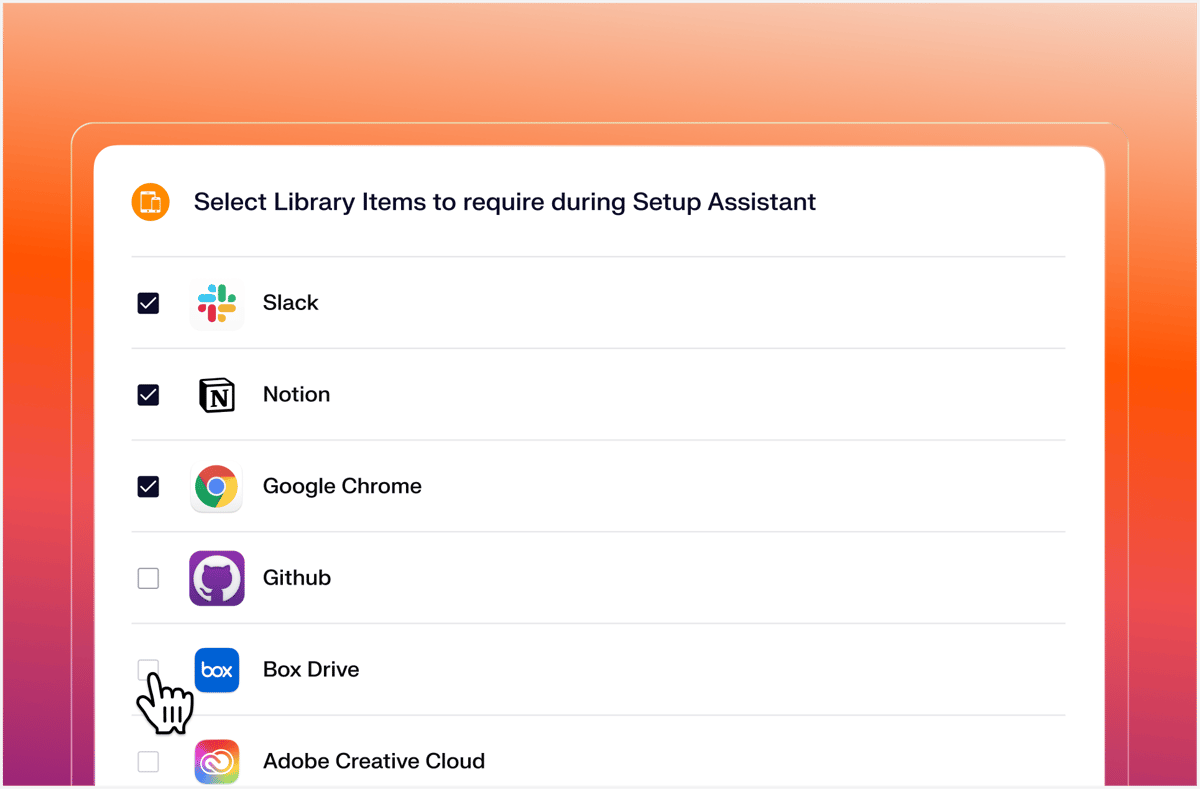
If you are on a different MDM, the underlying declaration is the same. Only the UI changes. The two things to confirm with your vendor: that they support delivering the MMA declaration during Setup Assistant before the device is marked configured, and that your Restore pane is not being skipped by your existing ADE profile.
What this means if you run a Mac fleet
If you have been quietly accepting that every new MacBook means a half-day of user productivity loss, or putting off a refresh because the migration math never added up, MMA gives you a reason to revisit those decisions. The honest assessment: the feature is small in scope but solves a real problem that has been with us for a decade.
Two practical next steps:
- Confirm your MDM supports delivering declarations during Setup Assistant before the device is marked configured. Not all of them do yet, and this is the single biggest factor in whether MMA is usable for you on day one.
- Audit your ADE skip keys to make sure the Restore pane is not being suppressed.
We are an Apple Technical Partner, and we have started planning refresh and infrastructure-change conversations with our customers around what MMA unlocks. If you are sitting on Intel Macs, evaluating an MDM change, going through an acquisition, or just tired of telling users they are losing their library data again, this is a good moment to talk through it.
How we can help
Keep reading
All postsWWDC 2026: the Apple device management improvements coming to your business this year
At WWDC 2026, Apple previewed a wave of business-focused improvements landing in iOS and macOS 27 later this year. Here's a plain-English look at what matters for companies that run on Apple.
Read articleOne Mac, one admin password: how we're rolling out macOS LAPS with Iru
Iru now supports macOS LAPS, and we're rolling it out across the Macs we manage. Here's what LAPS is, how Iru handles it, and why it makes your fleet harder to compromise.
Read articleIntune isn't free: what bundled device management really costs
Intune comes bundled with Microsoft 365, so it looks free. The real cost shows up in admin hours, add-on licenses, and devices nobody can confirm are patched. Here's how to weigh it, and how we help teams move to Iru.
Read article